New Feature: Custom SMTP
We're excited to announce Custom SMTP — a new feature that lets you deliver certificate emails through your own mail server instead of CertFusion's. Take complete control over the sending domain, deliverability, and audit trail of every certificate notification you send.
Why Custom SMTP?
By default, every certificate email is sent through CertFusion's mail infrastructure. That works great out of the box, but for organizations that care about brand consistency, deliverability, and traceability, sending from your own SMTP server is a much better fit.
With Custom SMTP, you can:
- Send from your own domain — emails arrive with
From: certificates@yourdomain.com, fully aligned with your SPF, DKIM, and DMARC records. - Build your own sender reputation — no longer share inbox-placement signals with thousands of other CertFusion users.
- Keep an audit trail — every certificate email shows up in your own mail server's logs, alongside the rest of your outbound communication.
- Meet compliance requirements — keep email delivery within your own infrastructure for data-residency or security reasons.
If you've ever had a recipient ask "Why did this email come from a different domain than the rest of your communication?" — Custom SMTP solves that.
What You Can Configure
SMTP Server Details
Plug in any standards-compliant SMTP server — Gmail Workspace, Microsoft 365, Amazon SES, Mailgun, Postmark, SendGrid, Mailtrap, or your own self-hosted server. All you need is:
- Host (e.g.
smtp.yourprovider.com) - Port (typically
587for TLS or465for SSL) - Encryption — TLS (recommended), SSL, or None
- Username and Password
From Address & From Name
Because your SMTP server is now in charge of delivery, you also tell it exactly which address and display name to use:
- From address — the email address recipients see in their inbox (e.g.
certificates@yourdomain.com). - From name — the display name shown next to it (e.g. "Acme Academy").
This replaces the per-design Sender Name field. Reply-To from your design's email settings still applies on top.
How to Set It Up
1. Open Custom SMTP Settings
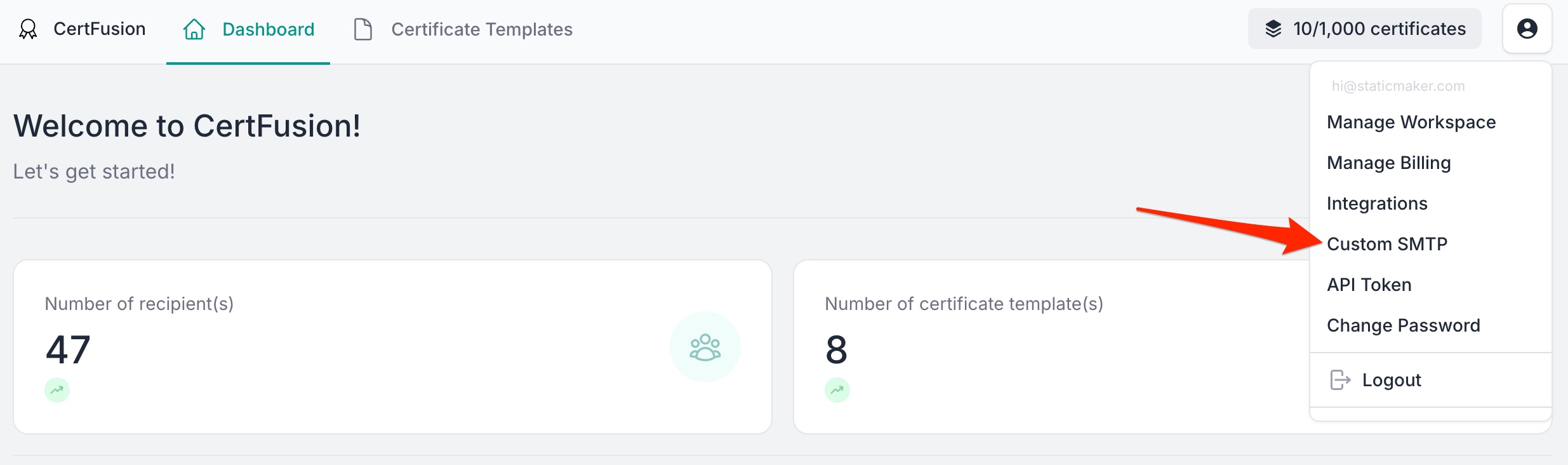
From your dashboard, click your account avatar (top-right) and select Custom SMTP.
2. Enter Your SMTP Credentials
Fill in your server details, encryption, login, and the From address/name you want recipients to see. Click Save.
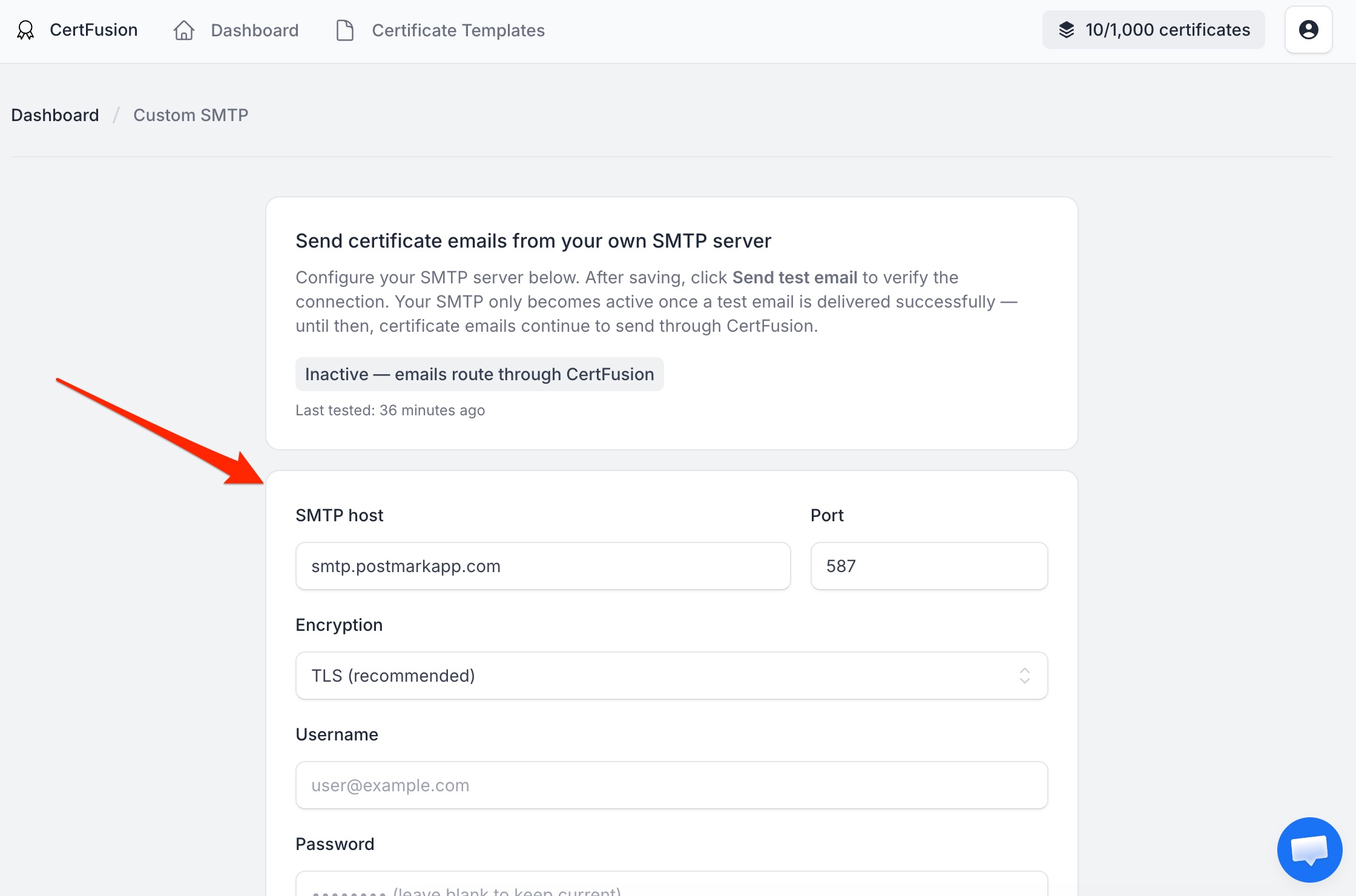
Important: Saving alone doesn't activate Custom SMTP. Your status will show as Inactive until you successfully send a test email — this prevents misconfigured credentials from breaking real certificate deliveries.
3. Send a Test Email
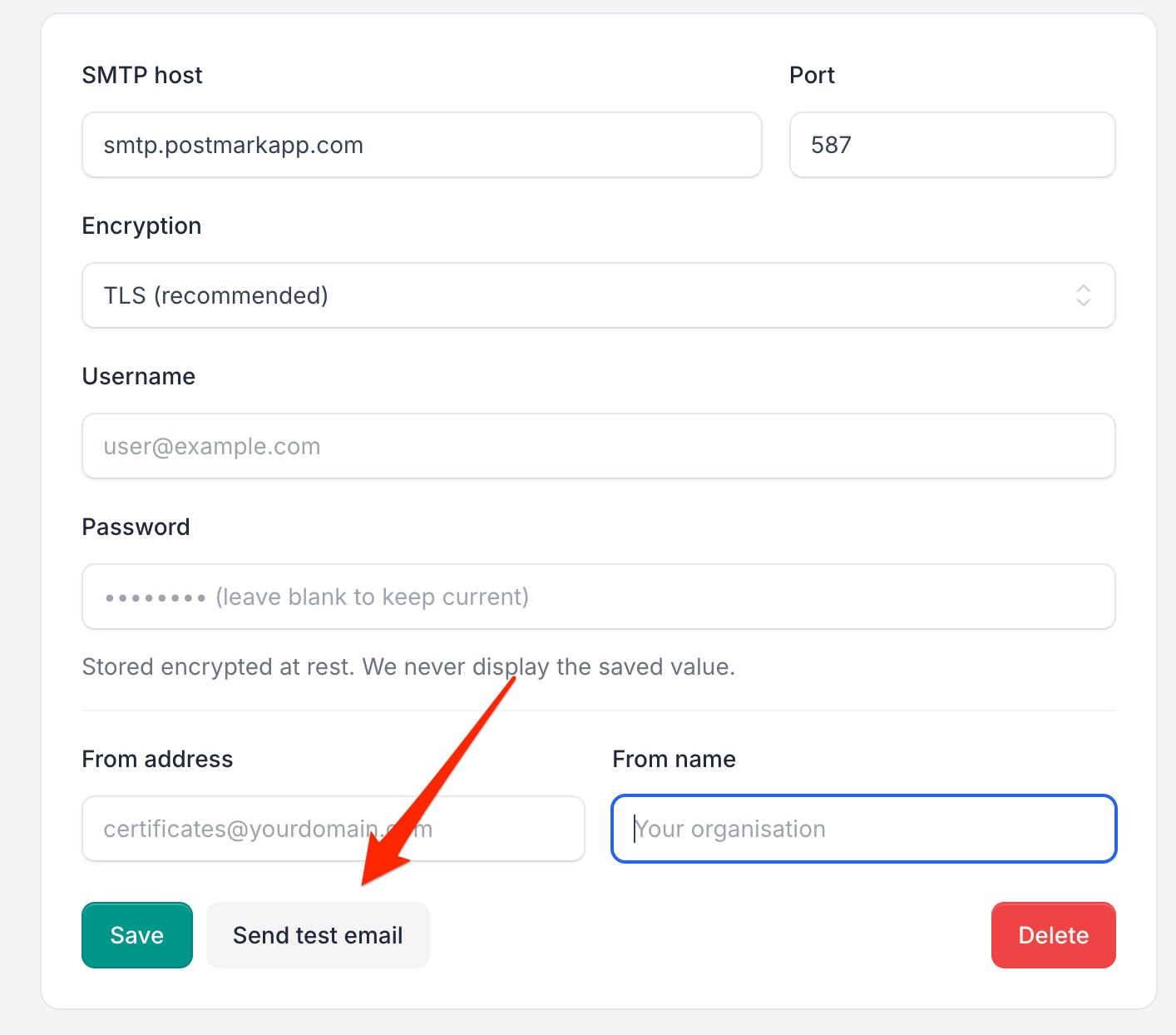
Click Send test email. CertFusion will deliver a test message to your account email through your SMTP server — exercising the same code path that real certificate emails use.
- On success: your status flips to Active, and every certificate email from this point forward will be delivered through your server.
- On failure: the exact SMTP error is shown on the page so you can fix the issue and retry.
That's it. From here on, every certificate your account issues — whether one at a time or in a bulk batch of thousands — is delivered through your SMTP server, with your From address, your headers, and your domain reputation.
Disable or Delete Anytime
Plans change, providers change. Custom SMTP is fully reversible:
- Disable — pauses Custom SMTP. Certificate emails immediately revert to CertFusion's default mailer. Your saved credentials are kept so you can re-test and re-enable later.
- Delete — removes the configuration entirely. You'll need to re-enter credentials if you want to bring it back.
Works With Custom Email Message
Custom SMTP and our Custom Email Message feature are designed to work together:
- The subject, body, and dynamic variables you set per-design continue to work exactly the same.
- The From address and From name are now driven by your SMTP configuration (because that's the address your mail server is authorized to send from).
- The Reply-To address from your design is still applied on top, so you can keep replies routed to your support team.
What If a Send Fails?
If your SMTP server rejects a delivery — wrong password, expired API key, sending limit reached — CertFusion captures the exact error and attaches it to the affected recipient. You can review failed sends, fix the underlying issue (e.g. update your password on the Custom SMTP page and re-test), then re-issue or resend the certificate.
No silent fallbacks: when you've taken control, you stay in control.
Availability
Custom SMTP is available now on the Standard and Growth plans. Head to Custom SMTP in your account menu to set it up.
Questions or need help picking the right SMTP provider? Reach out to our support team — we're happy to help you get your domain authentication and deliverability dialed in.
Table of Contents
Related Articles
Discover more insights and stories that might interest you