How to Import Zoom Registration Details into CertFusion Custom Fields
If you collect registration details in Zoom — job title, company, department — you shouldn't have to retype any of it when you issue certificates. CertFusion can pull those registration fields straight from your Zoom meeting or webinar and drop them into custom properties on your certificate, so every participant's certificate is personalized automatically.
In this guide, you'll set up two custom properties (job title and organization), connect Zoom, import your participants, and map their registration answers to your certificate — all in about five minutes.
What you'll need:
- A CertFusion account with a certificate created
- A Zoom meeting or webinar that used a registration form (with the fields you want, e.g. job title and organization)
- Admin access to the Zoom account (to authorize the connection)
Step 1: Add custom properties on the Design tab
Open your certificate and go to the Design tab. In the editor, open the Properties panel and add a custom property for each registration detail you want on the certificate.
In this example, we add two:
custom.jobtitle— for the participant's job titlecustom.organization— for their company or organization
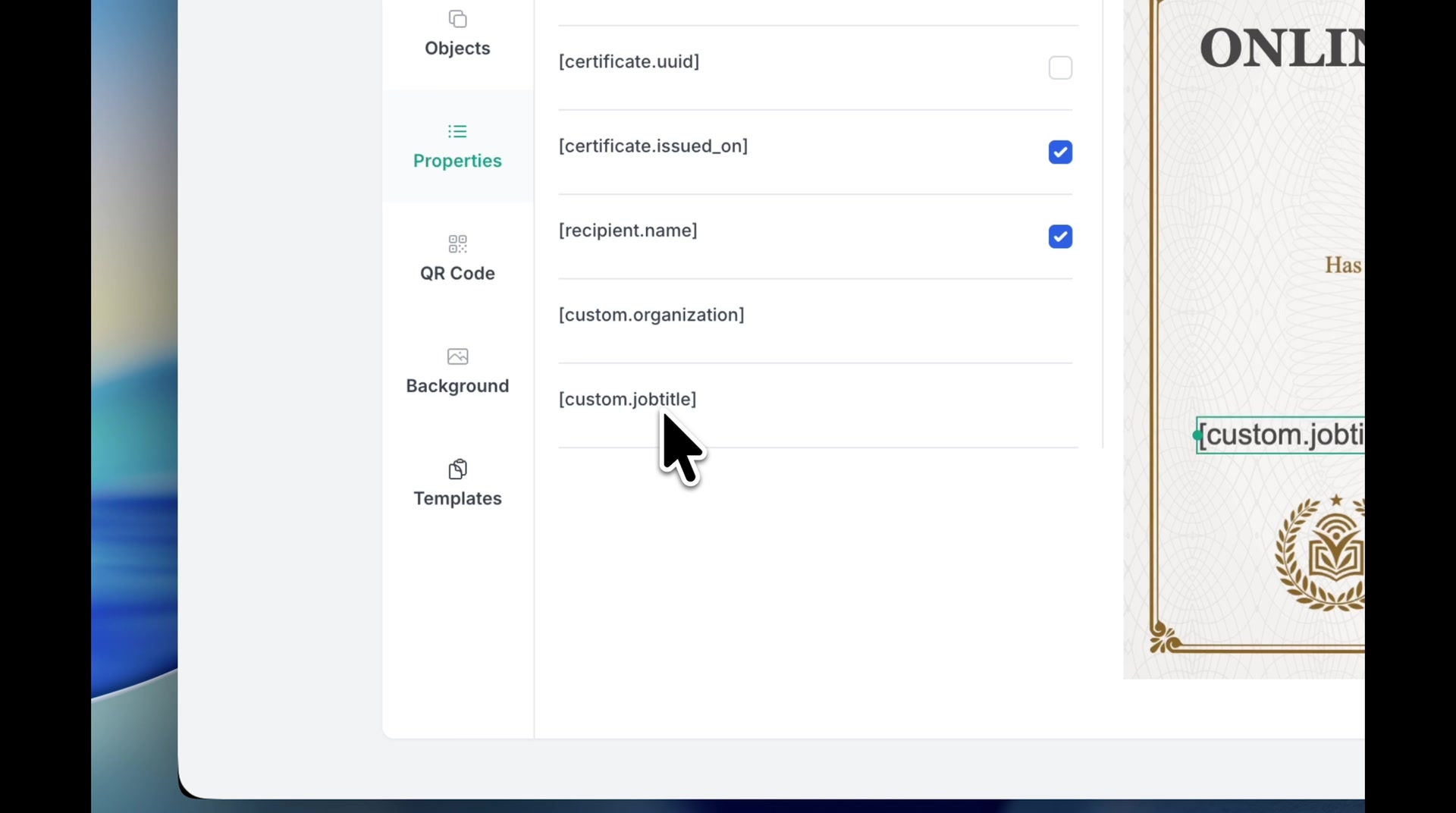
Place these properties on your certificate design wherever you want the values to appear. Name and email are built-in, so you only need custom properties for the extra registration fields.
Step 2: Connect your Zoom account
Next, connect Zoom to CertFusion. From your dashboard, open Manage Integrations, find Zoom, and click Connect. You'll be taken through Zoom's authorization screen — approve it, and you're done.
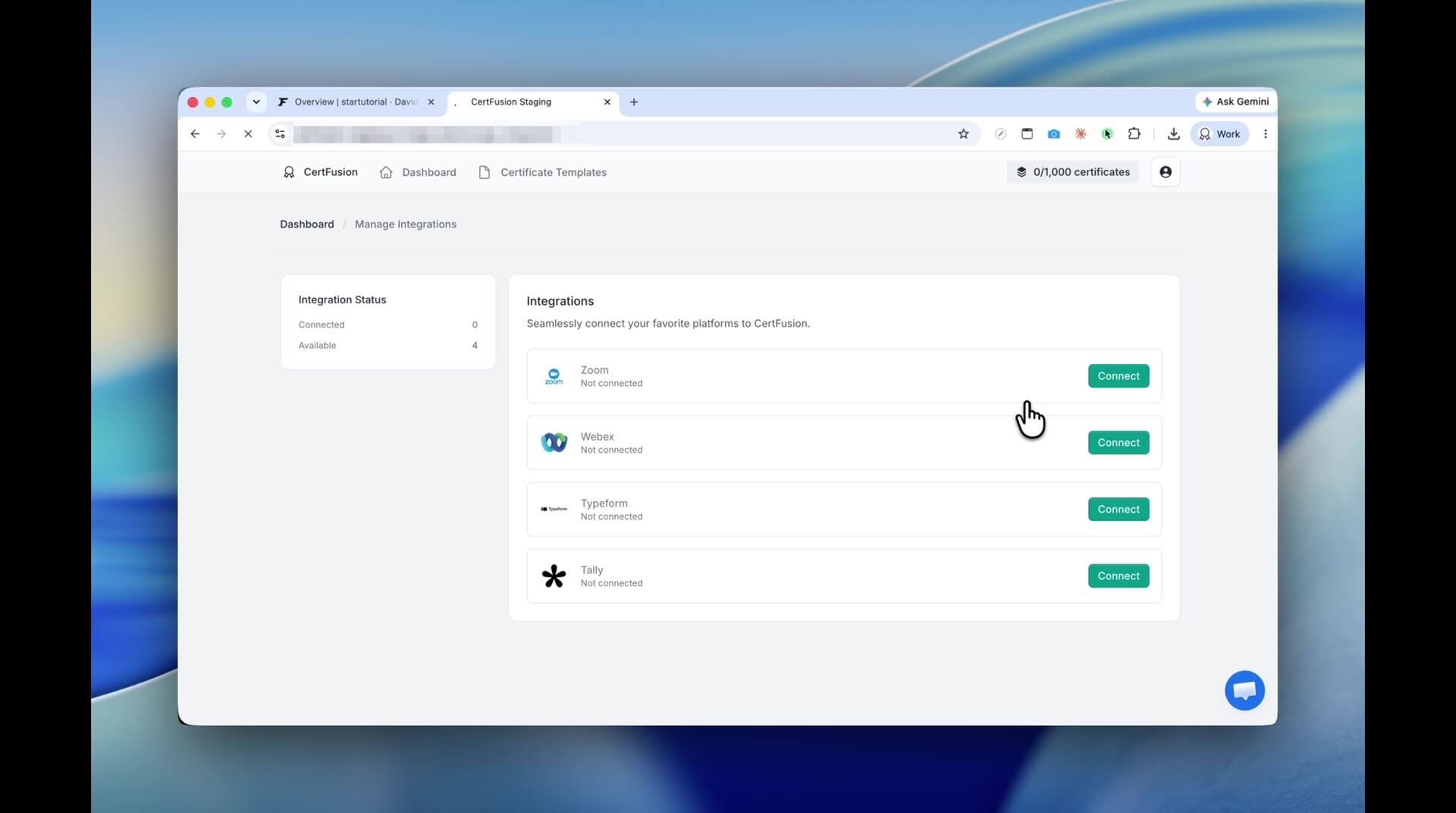
This is a one-time setup. Once connected, every certificate in your account can import from Zoom.
Step 3: Add recipients from Zoom
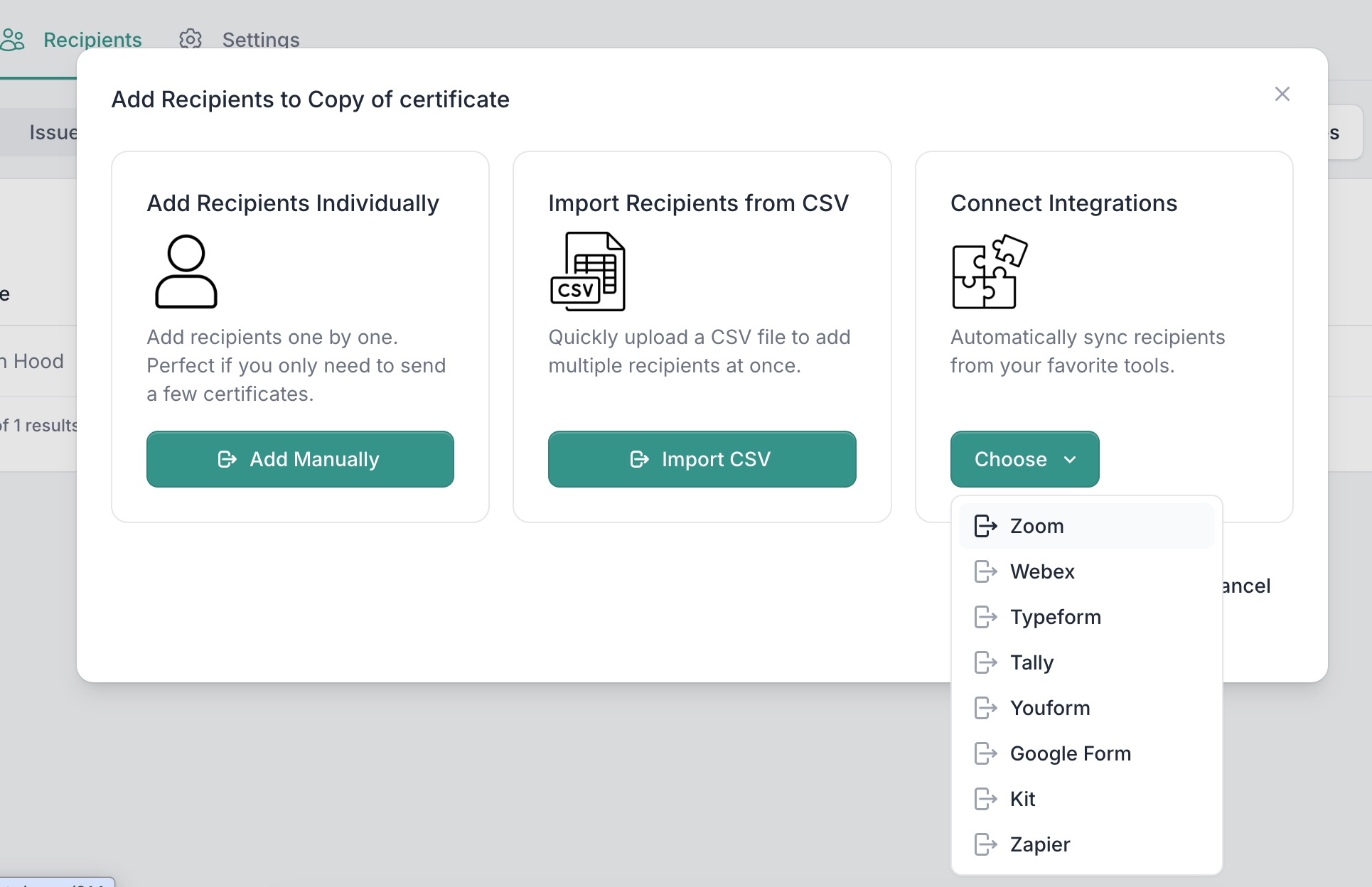
Open your certificate and switch to the Recipients tab. Click Add Recipients, and under Connect Integrations, choose Zoom.
Step 4: Select your meeting or webinar
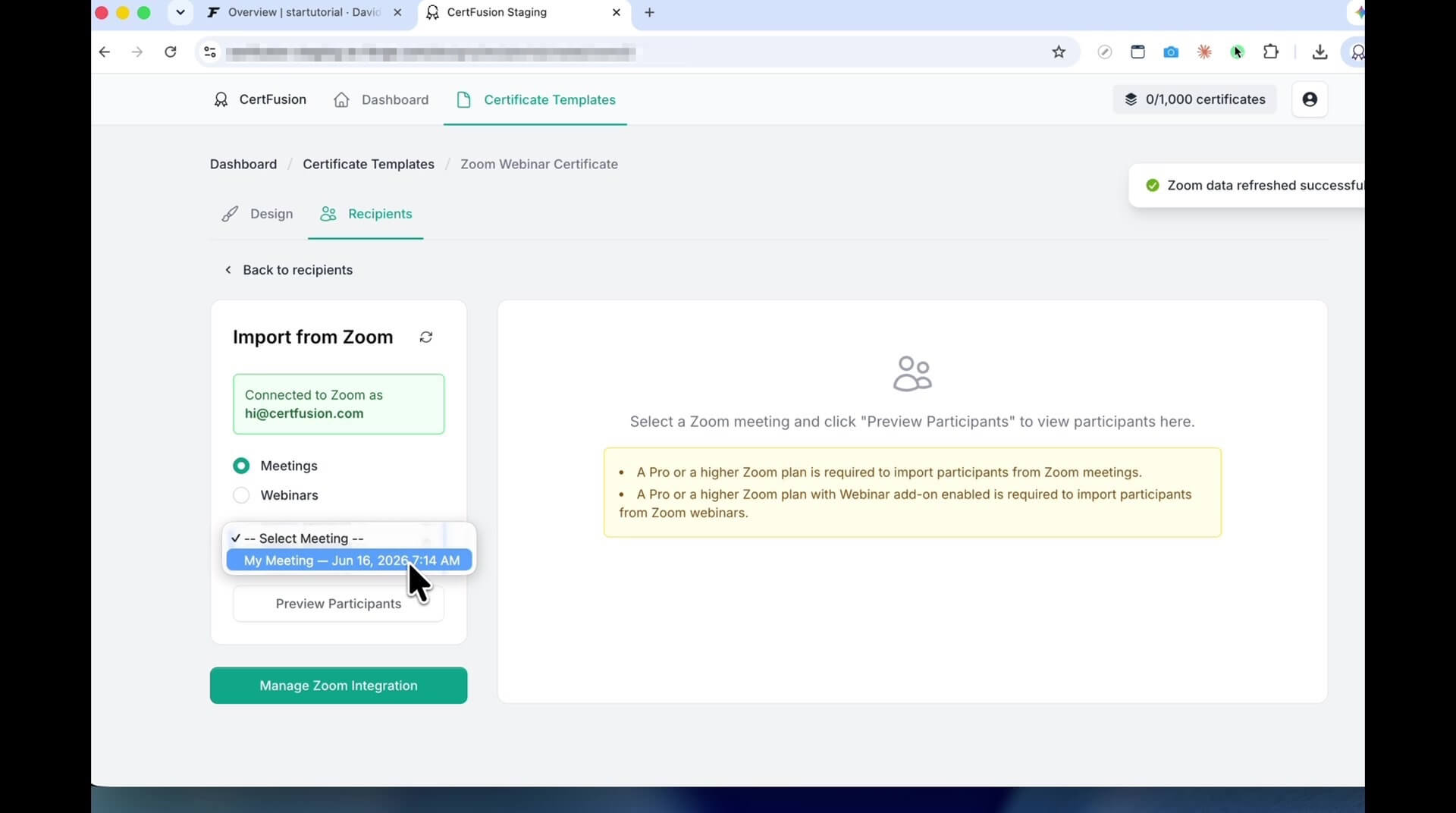
Choose whether you're importing from a meeting or a webinar, then select the specific session from the list. Click Preview Participants to see who registered.
Step 5: Map registration fields to custom properties
This is the key step. CertFusion shows each registration field it found on your Zoom form. Map each one to the matching custom property you created in Step 1:
- Job Title →
custom.jobtitle - Organization →
custom.organization
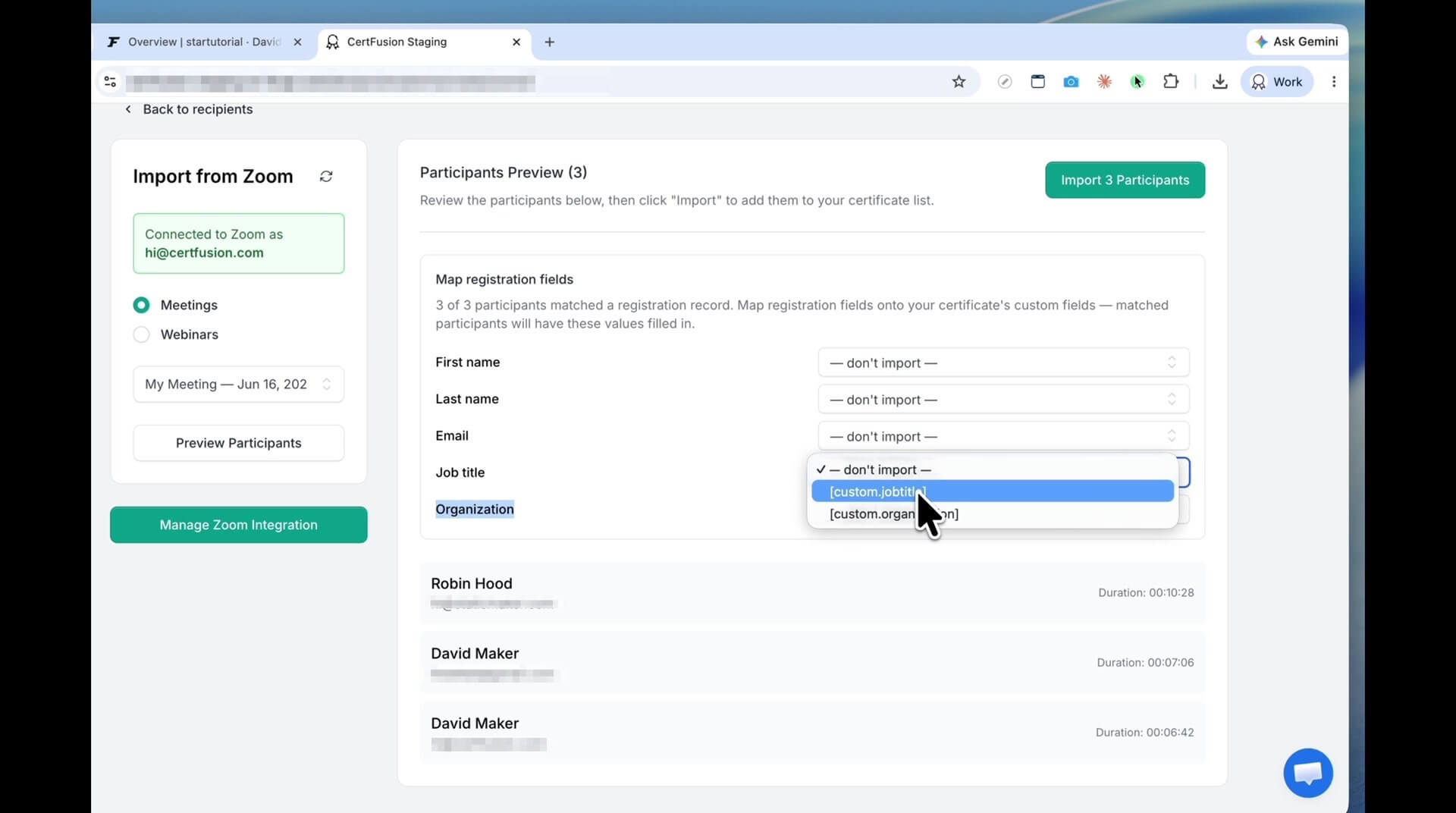
Name and email are mapped automatically — you only need to map the custom fields.
Step 6: Import and confirm
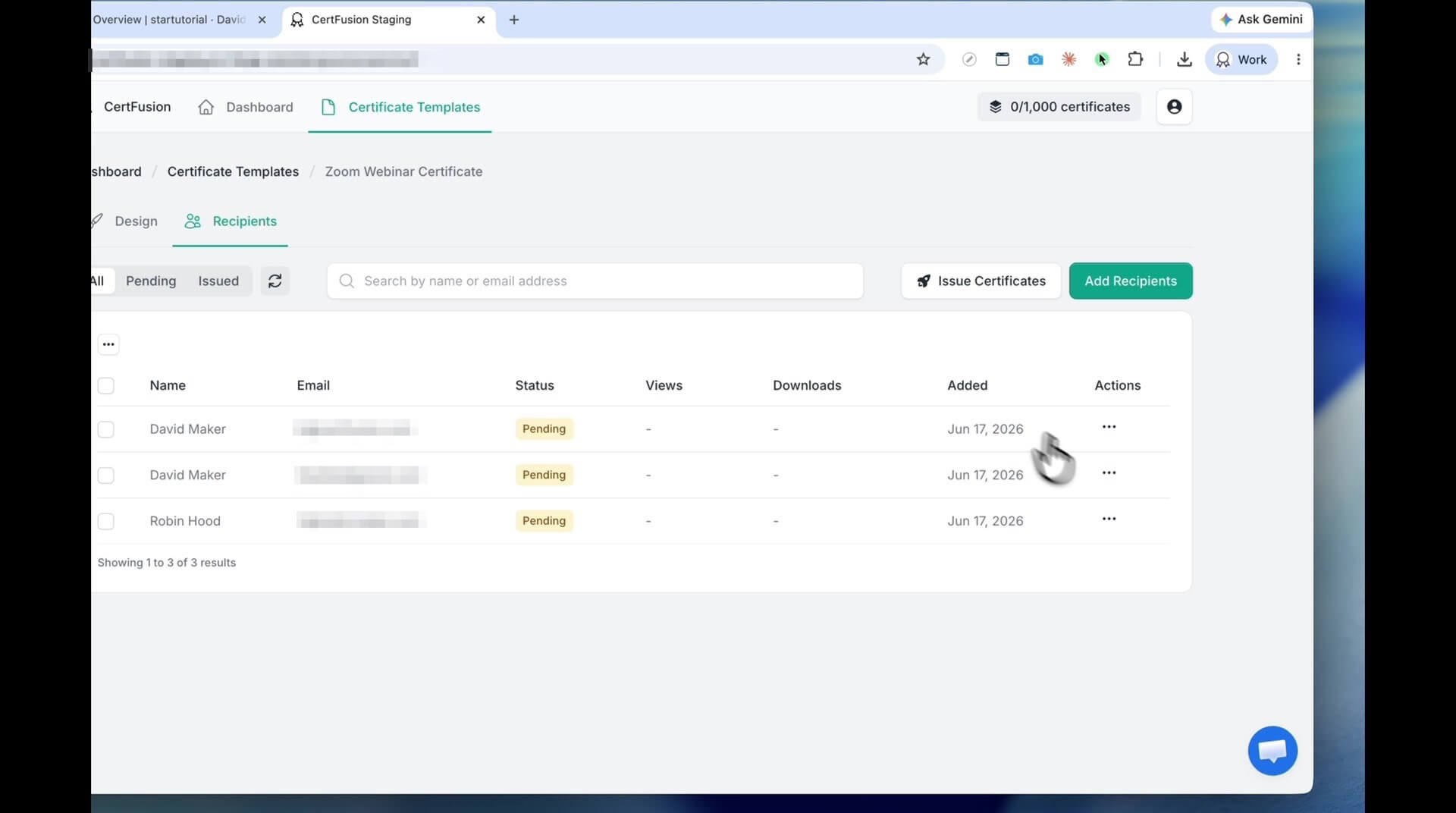
Click Import, confirm the participant list, and everyone lands in your recipient list — with their registration details attached and ready to issue.
Step 7: Verify the imported details
Open any recipient to check the result. The job title and organization fields are already filled in from their Zoom registration — no typing, no copy-paste from a CSV.
In this example, the participant's job title (CEO) and organization (TechTrove Innovations) came through exactly as they entered them on the Zoom registration form.
What's next
From here, issuing is one click — every certificate is generated with each participant's name, job title, and organization already in place. We cover bulk issuing in the next tutorial.
Frequently asked questions
Which Zoom registration fields can I import? Any field on your Zoom registration form — standard fields like job title, organization, and country, as well as custom questions you added. Each one just needs a matching custom property on your certificate.
Do I need to reconnect Zoom for every certificate? No. Connecting Zoom in Manage Integrations is a one-time setup for your whole account.
What if a participant left a registration field blank? The corresponding custom property will be empty for that recipient. You can fill it manually by editing the recipient before issuing.
Does this work for both meetings and webinars? Yes — during import you choose meeting or webinar, then pick the specific session.
Prefer to watch instead?
The full walkthrough is on YouTube — the same steps in just over a minute:
▶️ Watch: Import Zoom Registration Details into CertFusion Custom Fields
Ready to try it yourself? Sign up for CertFusion and connect your Zoom account in minutes.
Table of Contents
Related Articles
Discover more insights and stories that might interest you