How to Auto-Generate Certificates of Achievement (Google Sheets, Forms, Excel, CSV, and More)
Issuing certificates manually is slow, repetitive, and error-prone. With CertFusion, you can auto-generate professional Certificates of Achievement in minutes — whether your participant list comes from Google Sheets, Excel, Google Forms, Typeform, Tally, or any CSV export.
CertFusion uses a simple 3-step workflow:
- Design your certificate template
- Import participants via CSV
- Issue certificates automatically
Below is the complete guide.
1. Design a Certificate Template (Using CertFusion)
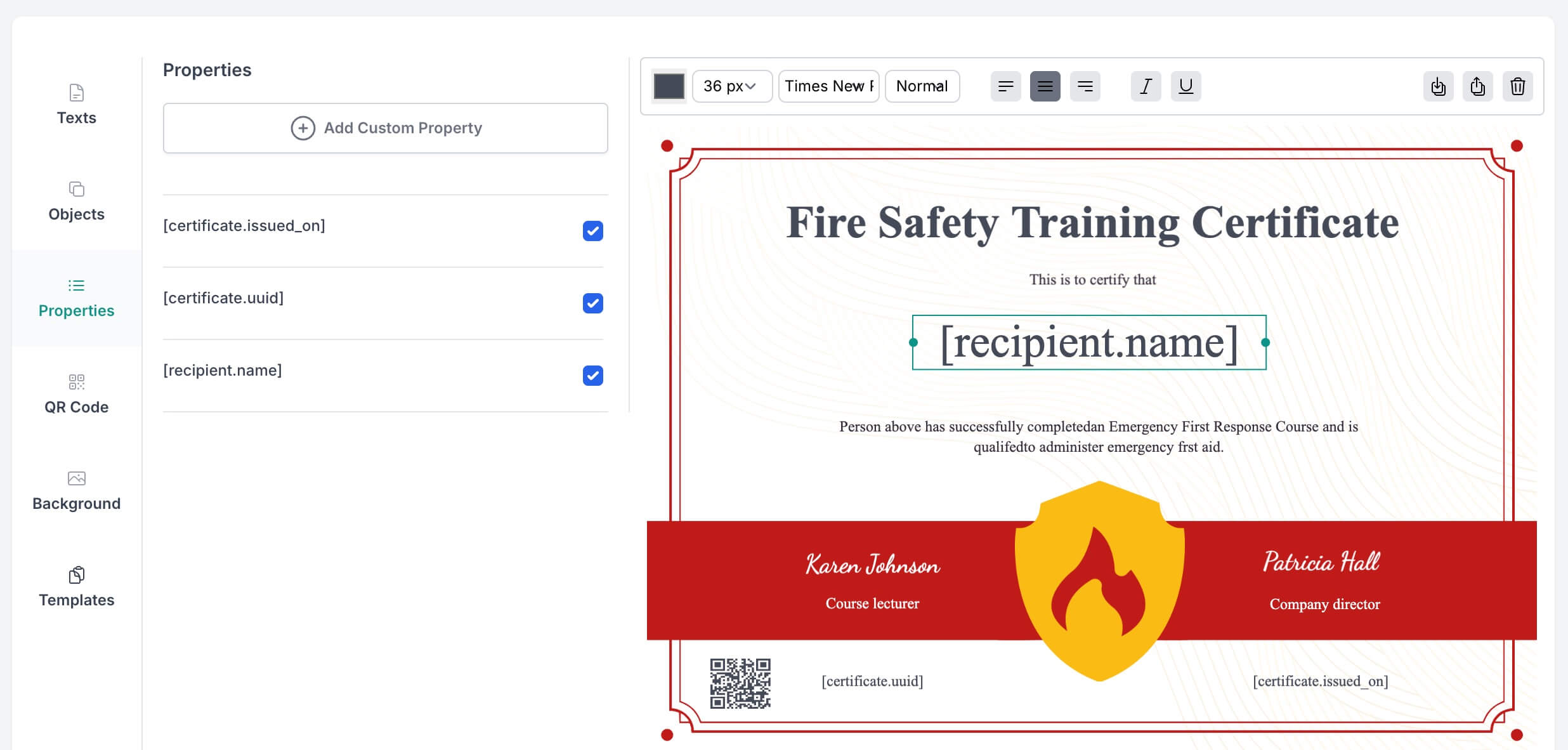
CertFusion’s drag-and-drop designer enables you to create polished, professional certificate layouts — even with no design background. You can customize:
- Text labels & headings
- Fonts, colors, sizing, and spacing
- Logos, seals, and background images
- Shapes, separators, and layout blocks
To personalize each certificate, add placeholders (Properties) to your design. These placeholders are replaced with real participant data when certificates are issued.
Default Properties Available
These system properties are always available and populate automatically:
| Placeholder | Description |
|---|---|
[recipient.name] |
Participant’s name (from your CSV) |
[certificate.uuid] |
Unique certificate ID generated by CertFusion |
[certificate.issued_on] |
Auto-generated issuance date |
Simply place these placeholders anywhere in your template’s text fields. CertFusion handles the data merging automatically during issuance.
2. Import Participants (Google Sheets, Excel, Google Forms, Typeform, Tally & More)
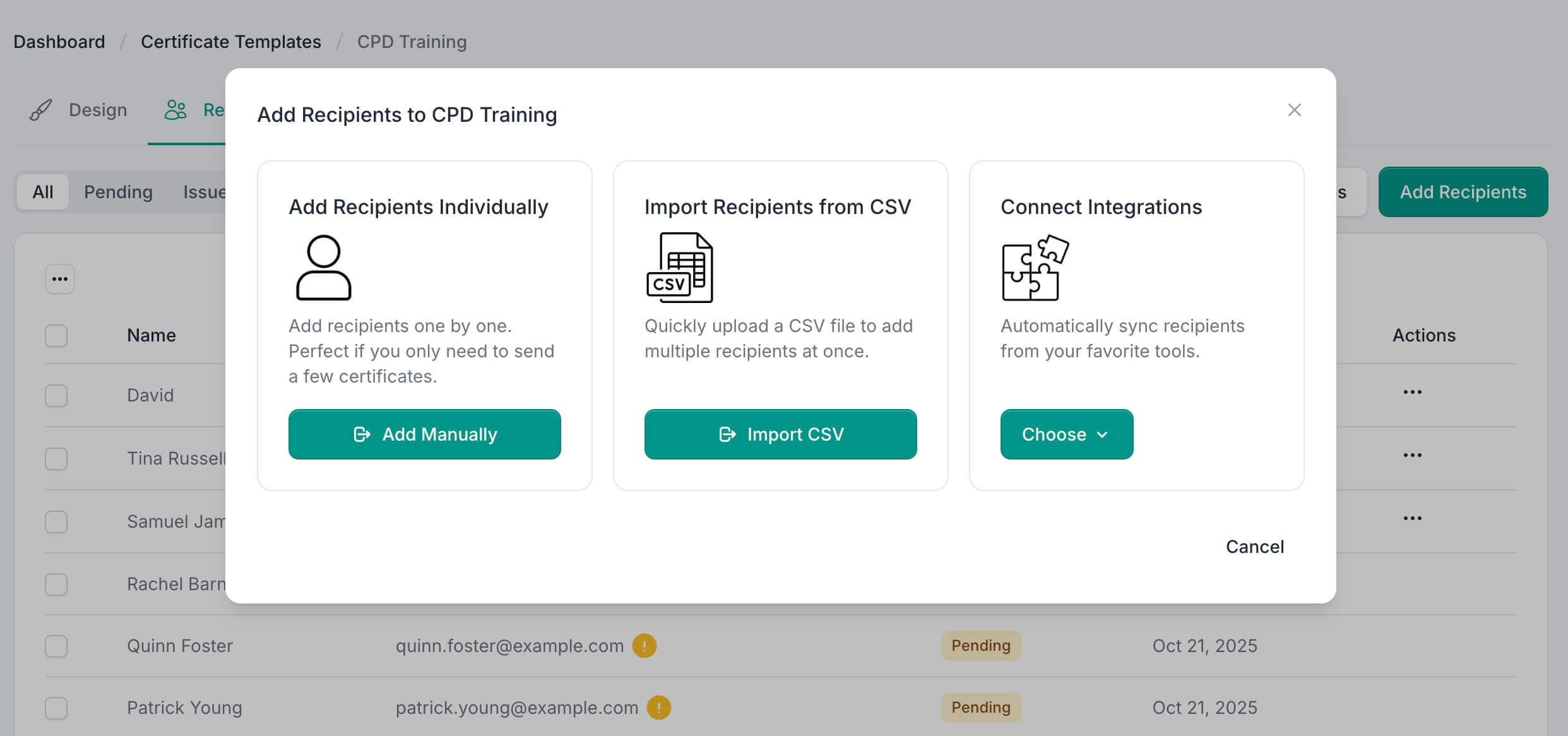
CertFusion accepts participant lists from any platform — as long as you can export a CSV file.
Popular data sources:
- Google Sheets → Download as CSV
- Google Forms → Responses Sheet → Download as CSV
- Excel → Save as CSV
- LMS, Webinar, or Event Platforms → Export attendee list
Required Columns
To import participants successfully, your CSV must include two required fields:
| Column | Purpose |
|---|---|
name |
Fills the [recipient.name] placeholder |
email |
Used for auto-email delivery |
Tip: If you don’t want to use auto-email delivery for some participants, you can enter a dummy email address in the CSV. Later, when issuing certificates, you can choose not to send emails and download them directly instead.
Additional optional columns (e.g., score, course name, instructor name) can also be added and used as custom properties.
Once uploaded, CertFusion automatically detects the columns, validates the data, and maps them to your template placeholders.
3. Issue Certificates Automatically
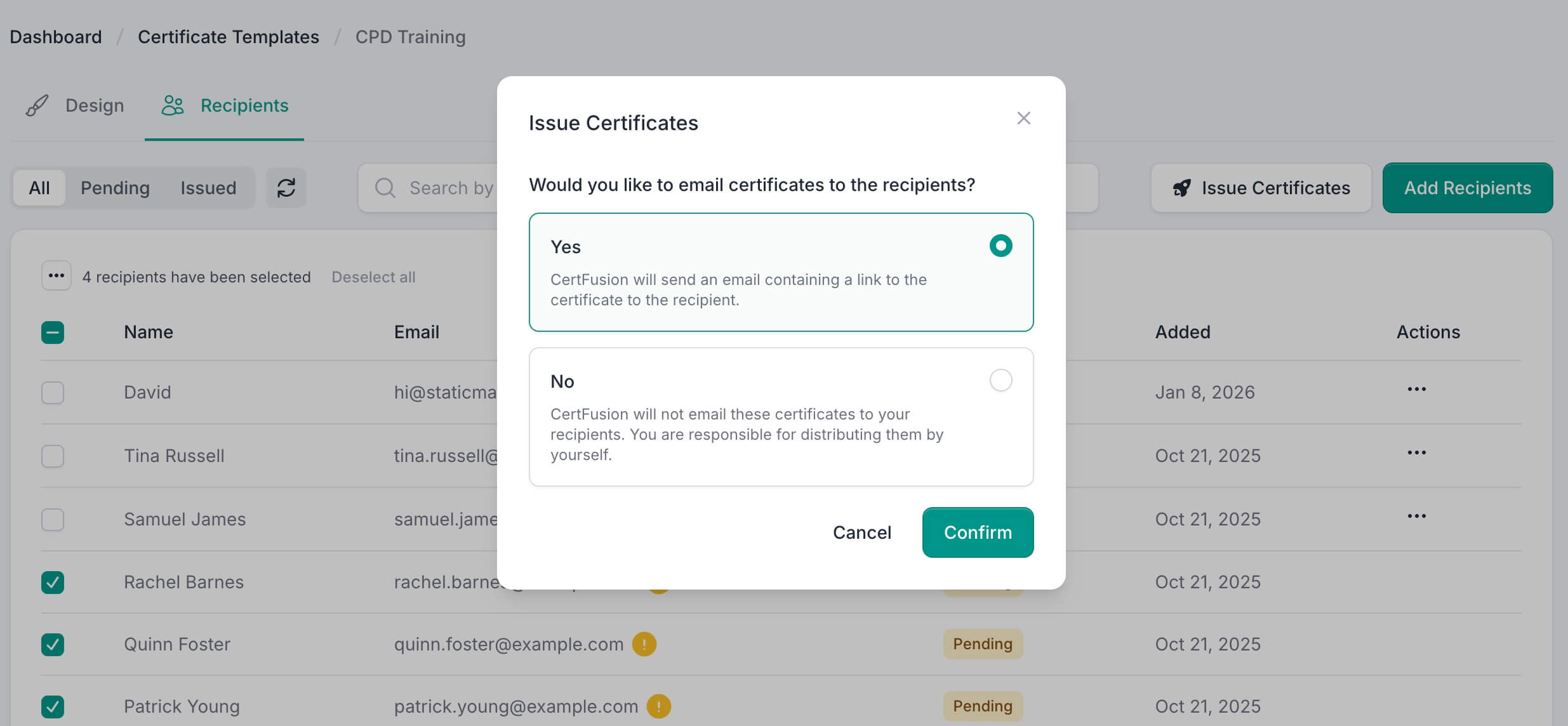
After your data is validated, you can issue certificates instantly with one click.
Two delivery options:
A. Auto-Email Delivery
CertFusion sends certificates to each participant’s email address (from the email column).
B. Direct Download
Download all certificates in a ZIP file — great for printing, internal handouts, or offline distribution.
Every issued certificate includes:
- A unique certificate UUID
- A verifiable certificate page
- The system-generated issued date
- Your complete template design populated with real data
This makes every certificate professional, consistent, and verifiable.
Final Thoughts
CertFusion lets you auto-generate Certificates of Achievement with a streamlined 3-step process:
- Design a beautiful template
- Import participants via CSV (name + email required; dummy emails allowed if you don’t want auto delivery)
- Issue certificates automatically
Whether your data comes from Sheets, Forms, Excel, Typeform, Tally, LMS platforms, or event exports — CertFusion turns them into polished certificates in minutes.
Check out the list of free certificates of achievement templates here.
Table of Contents
Related Articles
Discover more insights and stories that might interest you