4 Simple Methods to Combine First Name and Last Name in Excel
If you have first names and last names in separate columns and want to combine them into one column, Excel makes this process simple. Here’s how you can do it:
Method 1: Using the Concatenation Formula
The CONCATENATE function (or & operator) allows you to combine text values from multiple cells.
Steps:
-
Insert a New Column for Full Names:
- Add a new column where you want the combined names to appear.
-
Use the Formula:
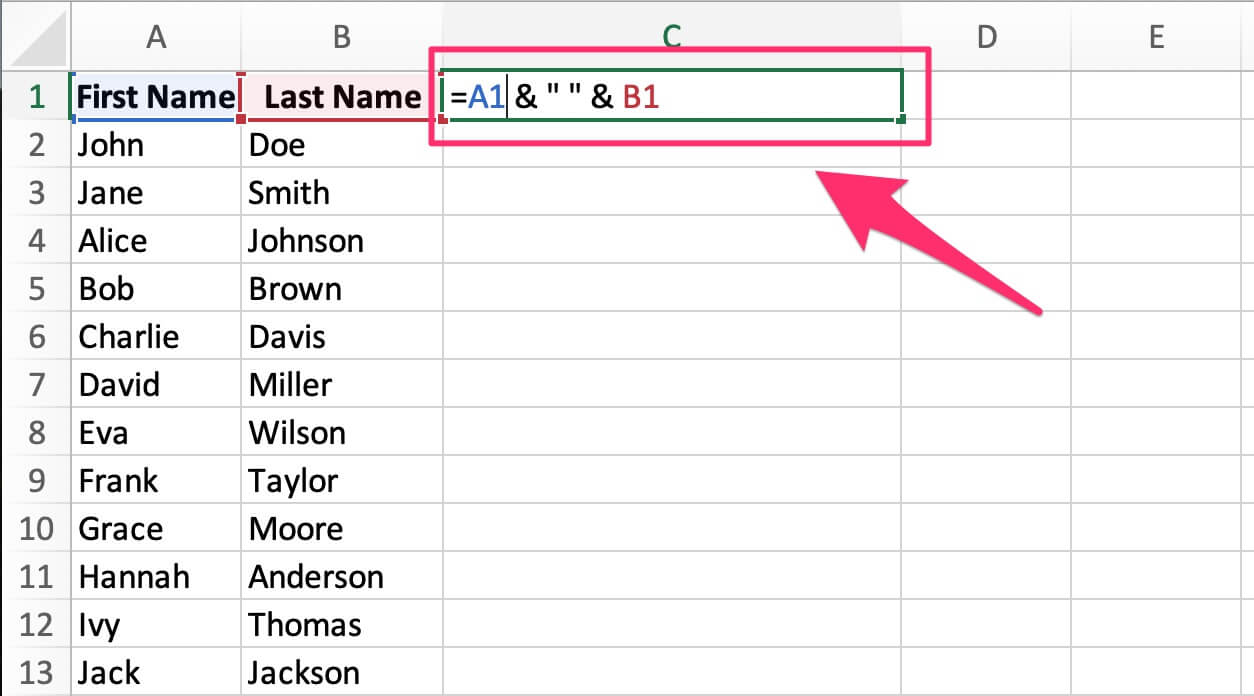
- In the first cell of the new column, type:
=A1 & " " & B1- Replace
A1with the cell containing the first name. - Replace
B1with the cell containing the last name. - The
" "adds a space between the first and last name.
- Replace
- In the first cell of the new column, type:
-
Press Enter:
- The formula will combine the first and last name.

-
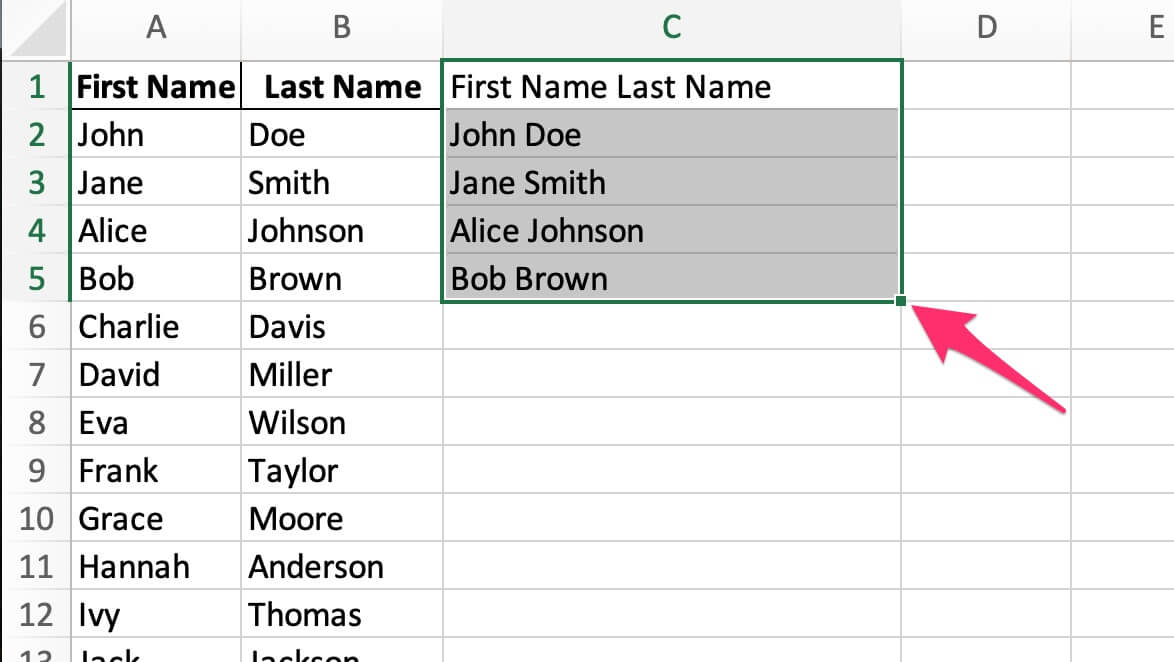
Copy the Formula Down:
- Drag the fill handle down to apply the formula to the rest of the rows.
Method 2: Using the CONCATENATE Function
Steps:
-
Insert a New Column for Full Names:
- Add a new column where you want the combined names to appear.
-
Use the Formula:
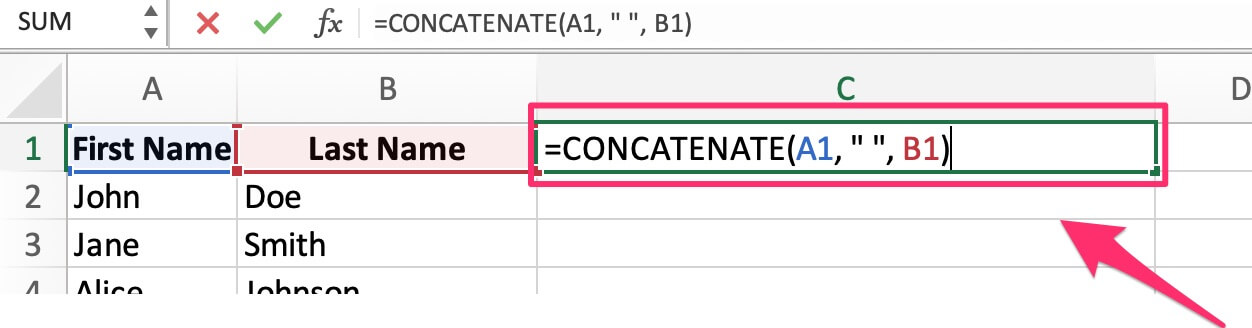
- In the first cell of the new column, type:
=CONCATENATE(A1, " ", B1)- Replace
A1with the cell containing the first name. - Replace
B1with the cell containing the last name.
- Replace
- In the first cell of the new column, type:
-
Press Enter:
- The formula will combine the first and last name.

-
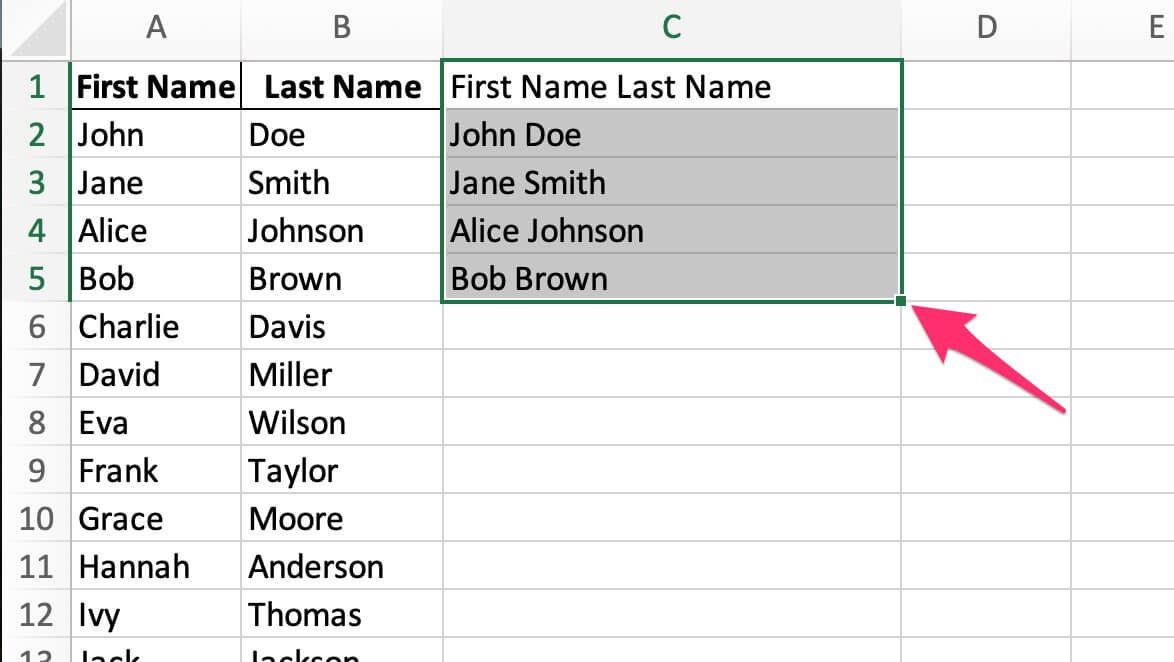
Copy the Formula Down:
- Drag the fill handle down to apply the formula to the rest of the rows.
Method 3: Using the TEXTJOIN Function
If you’re working with more complex data (e.g., middle names or suffixes), the TEXTJOIN function can simplify the process.
Steps:
-
Insert a New Column for Full Names:
- Add a new column where you want the combined names to appear.
-
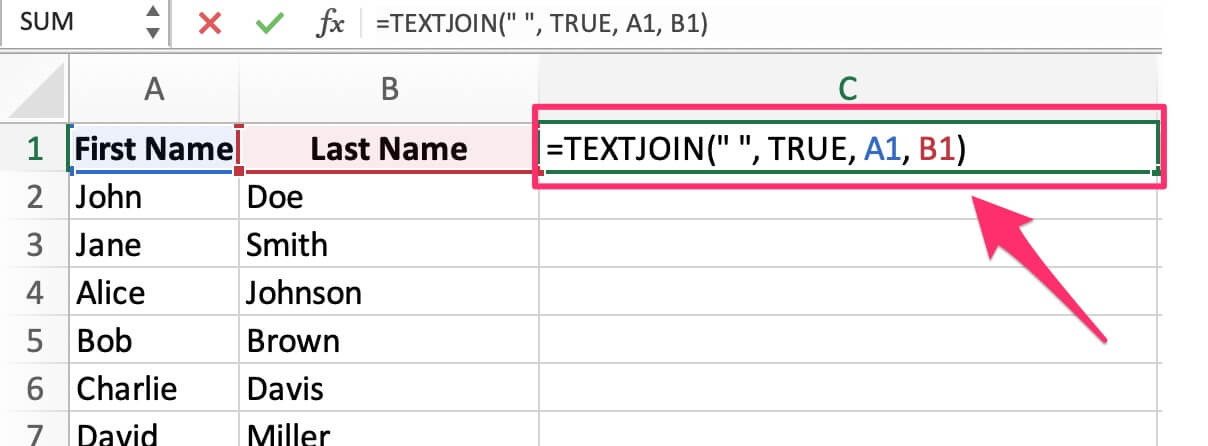
Use the Formula:
- In the first cell of the new column, type:
=TEXTJOIN(" ", TRUE, A1, B1)- Replace
A1andB1with the cells containing the first and last names. " "specifies the delimiter (space) between the names.TRUEignores blank cells.
- Replace
- In the first cell of the new column, type:
-
Press Enter:
- The formula will combine the names.

- The formula will combine the names.
-
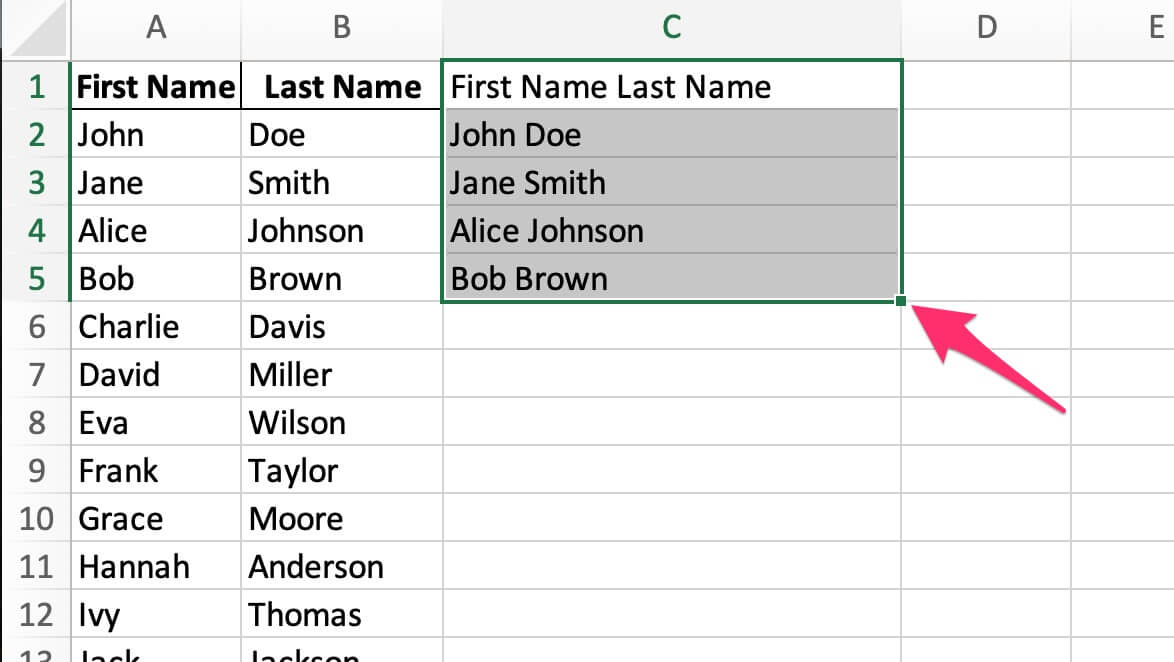
Copy the Formula Down:
- Drag the fill handle down to apply the formula to the rest of the rows.
Method 4: Using CertFusion’s Name Combiner
If you’re looking for an online solution to combine names effortlessly, CertFusion’s Name Combiner is a great option.
Steps:
-
Access the Tool:
- Visit CertFusion Name Combiner.
-
Upload Your Excel File:
- Upload the file containing the first and last names in separate columns.
-
Download the Result:
- Once the names are combined, download the processed file and open it in Excel.

Tips:
- Formatting: If you need additional formatting (e.g., adding titles), include them in the formula:
=A1 & " " & B1 & ", Ph.D." - Backup Your Data: Always save a copy of your data before making changes.
Table of Contents
Related Articles
Discover more insights and stories that might interest you